Tuesday, July 27, 2010

iPhone 4 Trick: Invert Colors for White Text on Black Background


iPhones and similar digital devices are frequently difficult to see in certain situations. The 4th generation of the iPhone now comes with a shortcut to quickly inverse the colors to improve visibility. Here is how to enable “white text on black background” inverse colors mode on the iPhone.

When reading a long time or in certain lighting situations, I love this shortcut to be able to quick inverse my colors. Just getting white-text on a black background is a nice change of pace.


The secret is the use the iPhone’s accessibility’s settings to assign the inverse color mode to the triple-tap of the Home button.

1. Click General icon
2. Select Accessibility
3. Select Triple-click Home
4. Select Toggle White on Black
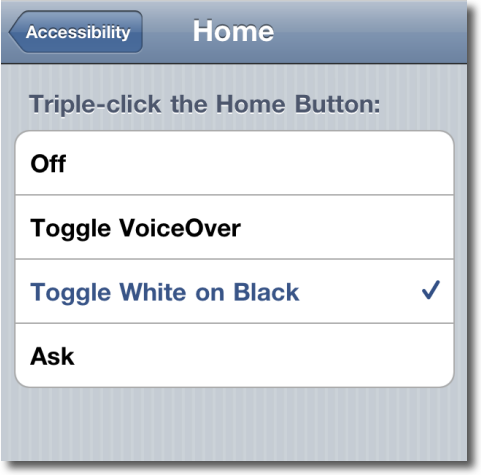
how to setup invert colors on iPhone

Then to inverse (or to return to normal again) just triple click your home button.

The iPhone will not take a screenshot showing this mode so here’s an external picture showing the invert mode.
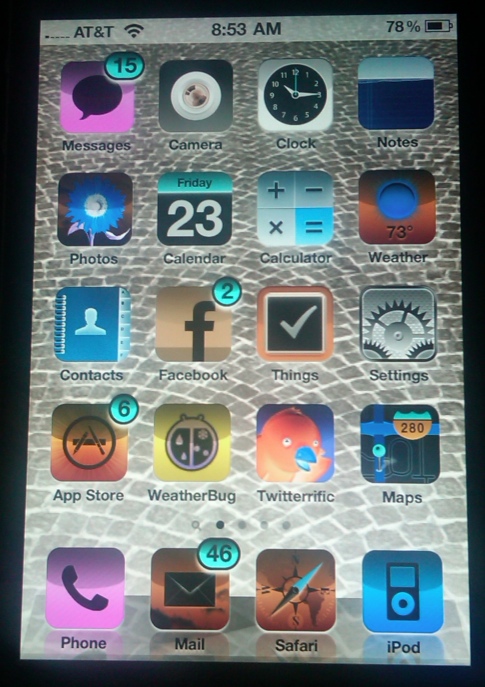
example of inverted iPhone

Read Full Entry

Wednesday, July 21, 2010

Post Pictures to Twitter with iPhone


There are several ways to post pictures to Twitter with iPhone

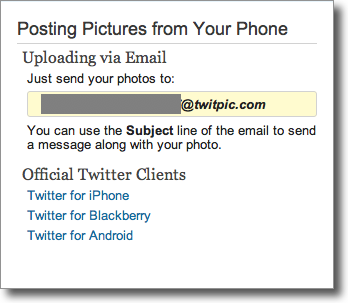
Many people with iPhones want to know how to post pictures to twitter. The majority of pictures on twitter go through the twitpic service. Log in to the site with your twitter credentials, and you will be assigned a twitpic email address. Create an iPhone contact with this email address and when ever you want to tweet a picture just email the picture to your twitpic email address. Whatever text you include in the subject line of the email will be included as text in your picture tweet.


using twitpic to post images to twitter

Alternatively, the majority of the twitter clients also support the twitpic service.

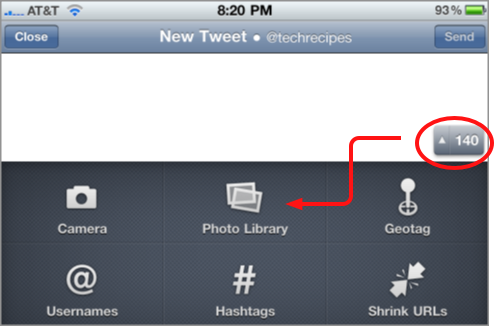
For example, here is how to do it with the official twitter client.

uploading pics through twitter client

Here is also how to do it with twitterrific:

uploading images through twitterrific


Read Full Entry

iPhone: Transfer Voice Memos from iPhone to Computer


The ability to quickly record voice memos on the iPhone is a frequently overlooked feature. Furthermore, figuring out how to import these files from your iPhone to your computer can be tricky. Here are a couple of ways of getting your voice memos off your phone and onto your computer.

The voice memo feature is very interesting. I’ve seen it used from everything to sweet messages to one’s spouse to quick voice recorder for lectures or interviews.


One you have a voice memo recorded, there a two main ways of transferring the voice memo to your computer.

via iTunes

iTunes will transfer voice memos once you enable that setting.

1. Dock your iPhone via USB
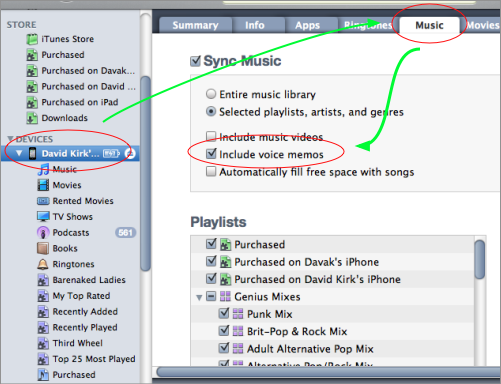
2. Click the name of your iPhone under Devices in the left column
3. Click the Music tab
4. Click the checkbox for Include voice memos

how to transfer voice memos using itunes

5. Sync your device
6. Your files will appear under a new Voice Memos playlist

the voice memo playlist in iTunes

7. You can right-click on a memo to perform advanced tasks or gain access to the actual audio file.

Direct Share from Phone

You can also email or MMS the voice memo directly from your phone. If you only have a few files, emailing them may be a good option.

1. From the voice memo screen click the silver button in the lower right corner. This will take you to a list of your voice memos.

2. Select the voice memo you want to share and press the large blue share button at the bottom right of the screen.

3. Select Email or MMS

Read Full Entry

Friday, July 16, 2010

How to Make Incompatible Extensions Work with FireFox 4 (beta)


Every time a new version of Firefox comes out, I hate seeing this error when installing extensions: “…could not be installed because it is not compatible with with Firefox.” With the newest releases of firefox and firefox betas, your favorite extensions may not work. This tutorial will show you how to force them to work.


1. Launch Firefox 4 beta
2. In the address bar enter the following: about:config
3. Click on “I’ll be careful, I promise” when the message appears.


4. Right click and choose New->Boolean


5. A new window will pop up,type in:
extensions.checkCompatibility.4.0b (with FireFox 4 beta)
extensions.checkCompatibility.4.0 (with FireFox 4)
and then click OK.

(Or change to whatever version that you are currently using…)


6. Set value to False and click OK to close that window.


7. Restart Firefox

Now, you can use your incompatible add-ons easily.


Read Full Entry

Thursday, July 15, 2010

How to remove time limits from video at Veoh and MegaVideo

Watching videos from these two services can be annoying due to the time restrictions. Unless you install Veoh TV you can only view the first five minutes. MegaVideo has a time limit of 72 minutes. Luckily, there is a way to bypass these time limit restrictions.

A simple Firefox add-on will let you remove these limits easily. You’ll be able to get around the time limits and be able to watch Veoh without installing Veoh TV.


1. Run Firefox
2. Download the Illimitux plugin and create an account
3. When you watch videos at Veoh or MegaVideo, the illimitux’s window will appear at the bottom of the page. To remove the time limit, click on “Remove limitation” and then you can watch the full video.

Here is an example of the limits in Veoh:

veoh limits

This is an example of the ability to remove the limitations:

remoe veoh limits

Read Full Entry

Saturday, July 10, 2010

How do I transfer pictures and videos from iPhone to Windows 7?


Win 7 typically will detect when an iPhone is connected to the computer and will walk the user through the transfer steps through autoplay. However, there is a manual way to copy the files as well.

When Windows 7 notices that you have plugged in your iPhone, a wizard will appear that helps you with your transfer. This is part of the autoplay mechanism of windows that many people do not like. This tutorial describes moving images and videos from your iPhone to your Win 7 box without autoplay.


1. Connect your iPhone

2. Go to Computer from your start menu

3. Your iPhone should appear as a device. Right-click on the iPhone section and select Import pictures and videos

import images and videos windows 7 from iPhone

Read Full Entry