Sunday, May 23, 2010

iPad: Use Folders on Safari’s Bookmarks Bar to Maximize Use of Space


By using folders to group the shortcuts on your Bookmarks Bar, you can create an orderly approach that allows for easily finding the desired bookmark. This approach is much better than just having a bunch of bookmarks on the bar that you have to hunt for, especially since most of them will be hidden from view.

1. Open the Safari app.


2. Tap the Bookmarks icon.

3. Tap Bookmarks Bar.

4. In the upper right corner, tap the Edit button.

5. In the upper left corner, tap the New Folder button.

6. Input a title for the new folder. Tap Done on the onscreen keyboard when you are finished.

7. Tap on an existing bookmark that you wish to move to the new folder.

8. At the bottom, tap the current location of the bookmark.

9. Select the desired folder to place the bookmark.

10. Tap the Bookmarks button in the upper left corner to return to your list of bookmarks so you can repeat the process and move other shortcuts.

When you are finished, you will have a much more useful Bookmarks Bar. Simply click on the desired folder and select the desired bookmark from the dropdown menu.


Read Full Entry

Thursday, May 20, 2010

iPad: How to Change the Home Screen and/or Lock Screen Wallpaper (Background)


The easiest way to customize the look of any computer or device is to change the wallpaper. The iPad allows you to change not only the wallpaper of your Home Screen but the Lock Screen wallpaper as well. You can set them to both have the same background, or you can use different images for each one.

There are two ways to change the wallpaper on your iPad:

Method One: Using Settings


1. Tap Settings on the Home Screen.

2. In the left column, tap Brightness & Wallpaper.

3. In the right column, tap the Wallpaper section.

4. Choose whether to use the included Wallpaper images collection, or to use your own album.

5. Select the desired image.

6. In the status bar, select Set Lock Screen, Set Home Screen, or Set Both to use the selected image as the desired background.

Method Two: Using Photos

1. Tap Photos on the Home Screen.

2. Select the desired album.

3. Select the desired image.

4. Tap the Options icon.

5. Select Use as Wallpaper.

6. In the status bar, select Set Lock Screen, Set Home Screen, or Set Both to use the selected image as the desired background.


Read Full Entry

Tuesday, May 18, 2010

iWork for iPad: How to Email Pages, Numbers, and Keynote Documents


You can email your iWork documents to another computer or user and send them in iWork format, PDF or (in the case of Pages documents) even as a Word document.

Make sure that you are in the My Documents view. Go to the toolbar and tap the My Documents button in the upper left corner.


Locate the document that you wish to rename.

Tap the Send icon at the bottom of the screen.

When the menu appears, tap Send via Mail.

Select the desired format for the emailed file. For a Pages document, you will have three different options:

While Numbers and Keynote documents only have two options:

Address the generated email message, add any text to the subject or body and send the email message.


Read Full Entry

iPad 3G : Activating / Purchasing AT&T Cellular Data for the iPad 3G+Wifi


This recipe will explain how to activate the Cellular Data service on your new iPad 3G.

Data plans start at:
$14.99 for 250MBs of data for a month
or
$29.99 for unlimited data for a month.

Data service can be purchased directly from your iPad without a wireless internet connection. All you need is AT&T data service coverage and your VISA/MC/AMEX credit card.


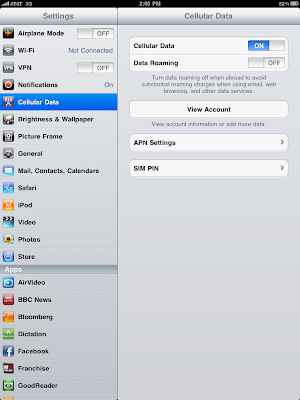
1. Go to Settings > Cellular Data

2. Tap on View Account

3. Enter in your full information (if your a first time user) or login using the email address and password you had setup previously.

4. At the bottom, you are given the choices of the two data plans. Tap on the one you want and then enter in your credit card information and tap on Submit.

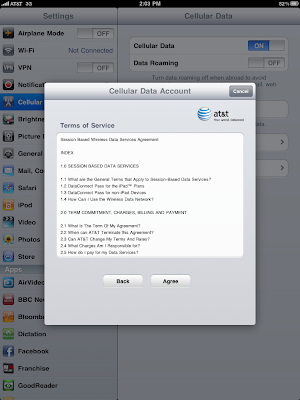
5. Agree to the Terms of Service and your account/purchase will be processed.

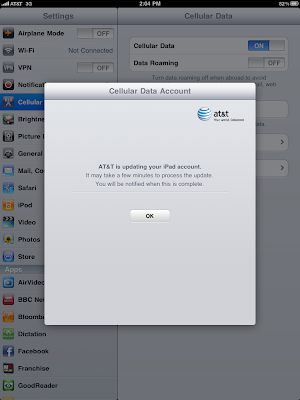
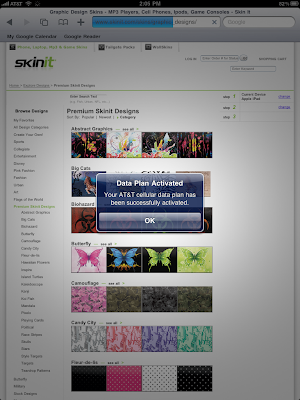
6. It will take a few minutes for the data service to activate, you will receive a Pop-up Notification once it is.

7. Enjoy your internet anywhere iPad experience!

TIP:

-Add a calendar reminder for when your months worth of data expires
-Unlimited data plans may be cheaper in the long term vs the 250mb. 250mbs of data can easily be consumed in a few days of streaming netflix or air video or any other video streaming app.


Read Full Entry

iWork for iPad: How to Rename a Pages, Numbers, or Keynote Document


If you need to rename an iWork document on your iPad, you might be puzzled at first as to how to accomplish this task. While it is pretty simple, it doesn’t exactly stand out. This works for Pages, Numbers and Keynote documents.

Make sure that you are in the My Documents view. Go to the toolbar and tap the My Documents button in the upper left corner.


Locate the document that you wish to rename. Tap the documents name, located directly beneath it.

The document name will now show up in a textbox.

Use the keyboard to input the desired document name.

Tap the Done button on the keyboard.

Your document should now have the desired name.


Read Full Entry

Monday, May 17, 2010

iPad and Maps : How to create and use offline maps and directions for traveling / trip planning


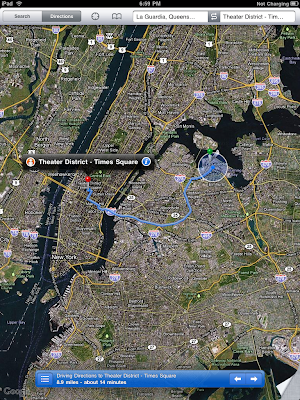
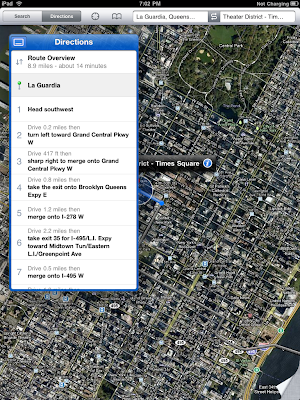
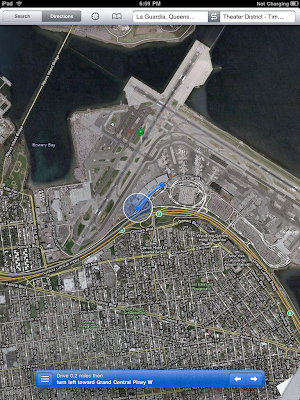
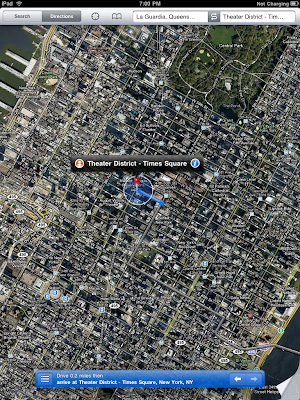
This recipe will explain how to use the built-in Maps program and the screenshot feature to create offline maps for use when you do not have internet connectivity.

1. Open up Maps


2. Do a search for your route, choose your means to travel (car, bus, walking) and then tap Start.

3. On the left side of the bottom bar, tap on the icon to show a list of the directions and turns. This is a nice ‘overview‘ list for directions.

4. Now to lets use the built-in screen capture feature (hold the home button and then hit the Power button) to take a snapshot and in turn save as a Photo/Static map in Photos Saved Photos

5. Do this for each turn.

6. Voila! You now have an old-but-new school map of your directions for times when you may not have internet coverage or wifi available or on a road trip. :)

Just go into Photos and Albums > Saved Photos and you can access the static maps / screen shots we created for use when we don’t have internet available or for trip planning.


Read Full Entry

Pages for iPad: How to Add Page Numbers to a Document


If you have a multipage document that is need of page numbers, Pages for iPad makes it easy and automatic. You just to to find and set the desired style and location and Pages will do the rest.

1. Open the desired document.


2. Go to the toolbar and tap the Tools icon. When the menu appears, select Document Setup.

3. Select either Tap to edit header (at the top) or Tap to edit footer (at the bottom), depending on where you want the page numbers located.

4. Select the desired region, (left, center, or right) where you want the page number located.

5. Go to the upper right corner of the page and tap the # icon.

6. Select the desired page numbering style.

7. Tap the Done button in the upper left corner.


Read Full Entry

Pages for iPad: Use the Ruler for Easily Formatting Text and Paragraphs


Instead of hunting around for the desired formatting option, you can use Pages’ ruler buttons to easily change paragraph styles and add bold, italics, or an underline to your text. You can also align text, insert tabs, line breaks, column breaks and page breaks from the ruler.

By default, the Pages’ ruler is hidden.


To reveal the ruler, tap the ruler edge, located beneath the toolbar. The ruler will then be fully visible.

The first button is for applying paragraph style. Select the desired text and tap the button. A list of available styles will appear. Select the desired style that you want applied to the selected text.

The next three buttons are for applying Bold, Italics, and/or an Underline. Simply select the desired text and tap the appropriate button(s).

Next we can apply left, center, right or justify alignment to selected text by using these four buttons:

Finally, by pressing the Tab button, you can add a Tab, Line Break, Column Break or Page Break to you document. Select the desired location on the document, press the Tab button and select the desired option.

To hide the ruler, simple tap the X at the right side of the ruler.


Read Full Entry