Thursday, September 30, 2010

iPhone, iPad, or iPod Touch: How Do I Update with an .ipsw File?


Apple frequently releases beta versions of its iOS software through ipsw files. These are the same file format that iTune uses to create backups of your device. If you should find yourself needing to update your device with an ipsw file, this tutorial will walk you through it.


This procedure describes how up update your device with an ipsw file. This process will completely erase your device.

1. Connect your iPhone, iPad, or iPod Touch to your computer via USB.
2. Click on it in iTunes.
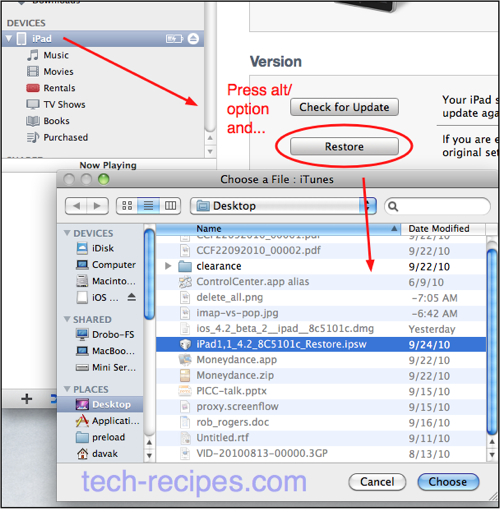
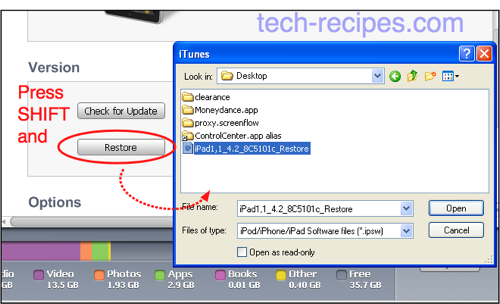
3. On an Apple computer, hold down the “alt option” key and press the Restore button. On a windows computer, hold down the “shift” key and press the Restore button.
4. Browse to your ipsw file and select it when the dialog box appears.
5. Confirm when the warning dialog box appears.

Here is a graphic showing how to update your device with an ipsw file in OS X:

how to update from ipsw file in OS X

Likewise, here is the demonstration on a Windows machine. I’m using XP here:

restore iOS from ipsw in xp

Just because you can upgrade to the latest beta using these methods does not mean that it is a good idea. As an iOS developer, I can tell you that the beta releases typically have serious bugs. Unless you have a really good reason to upgrade early, you should wait until the official release is available.

Read Full Entry

iPhone: How to Bulk Delete Emails

iPhone: How to Bulk Delete Emails
One of the common complaints about the iPhone is the inability to bulk delete email messages. This is a fundamental design decision that Apple has made. Unlike the BlackBerry, the iPhone is simply not designed to remove a large amount of emails at once. If you find yourself trying to bulk remove emails, continue reading for some of my suggestions.


Certainly, the iPhone has the ability to delete email; however, no easy option exists for bulk removal. Apple has decided not to include this as an option within the iPhone operating system at this time. Unfortunately, there is not an easy solution to this problem.

If you are receiving enough email to require bulk deletion, your email workflow is likely very inefficient. Instead of wasting time sorting and deleting all this email, you should invest some time in methods to improve your email management. Here are two different methods I would highly recommend:

How to Bulk Delete Emails

1. Gmail.

By passing your old email through gmail, you can create a powerful method for reducing the amount of unnecessary email that eventually hits your iPhone.

Old Email –> Gmail –> iPhone

Gmail has powerful filtering and spam removal techniques for cleaning up your email. Setup a free gmail account. You can add your existing email account to gmail through Settings -> Accounts and Imports. After you add your old email to gmail, delete your old email account from your phone and add the new gmail account instead. The iPhone automatically configures gmail so setting up gmail on the device is very easy.

Additionally, you can log into gmail in your browser to create filters to automatically sort, process, or delete emails before they hit your iPhone as well. By passing your old email account through gmail, you can drastically reduce the amount of time and energy you spend on email management.

2. IMAP

Most of us are not using just our iPhones for email management. If you also access your email from other devices, then using IMAP will save you a lot of pain. Instead of IMAP, most people use POP technology for email. Through POP all the devices receive all the emails. With POP, deleting a message one device does not remove it from the other.

With IMAP the emails are maintained on the server and each device just access these emails to read or manage. Thus, if one device using IMAP removes an email, that message should be removed from all devices. Therefore, by using IMAP, your iPhone will receive the benefit filtering and spam removal benefits of all your other devices.
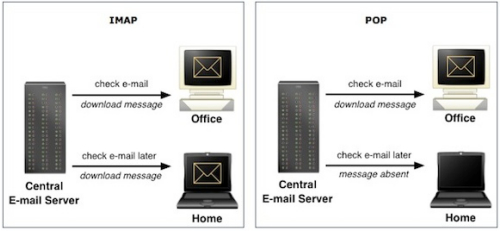
graphic showing imap vs pop
Note: Photo credits and additional information regarding POP versus IMAP.

For example, many people use Microsoft Outlook or Apple Mail. Both of these applications have excellent filtering and spam removal. By using IMAP instead of POP, when an email is removed through Outlook or Mail, it will be deleted from your iPhone as well.

Conclusion:

I certainly see the benefit of being able to bulk select and delete emails on the iPhone. Unfortunately, it is currently not possible. However, if you are manually deleting hundreds of emails a day on your device, then something is fundamentally wrong with your email workflow. By investing a little time in setting up gmail and/or IMAP, you can prevent the bulk of email from ever hitting your device.

Good luck. I look forward to reading your ideas about this…

Read Full Entry

Saturday, September 11, 2010

iPhone iOS 4.1: Send HD Video to YouTube


The cameras of many mobile phones have been able to upload high resolution video to YouTube for a while now. With iOS 4.1 Apple brings the uploading of HD video to YouTube to the iPhone party.

In prior versions of the iPhone OS, users were not able to upload HD video straight to YouTube. With iOS 4.1 uploading high resolution video becomes very simple.


1. Select a video on your device

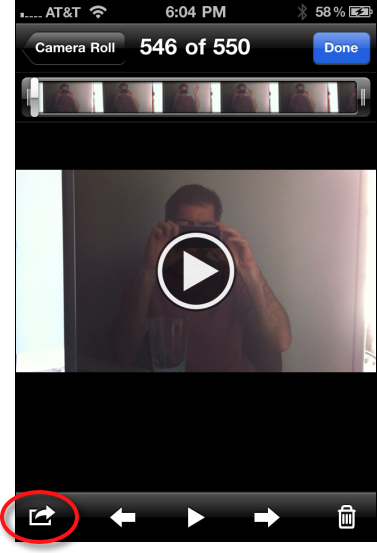
2. Click the Send icon in the lower left hand corner.

click the send icon

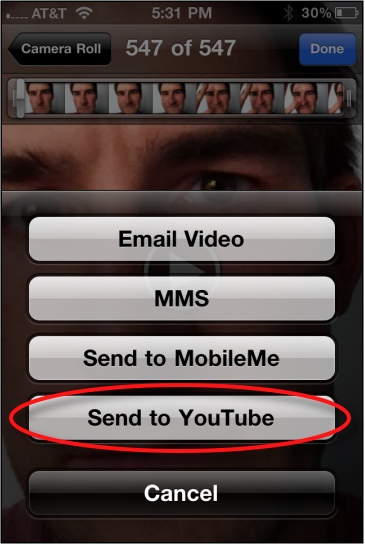
3. Click Send to YouTube button

click send to youtube

4. Fill out your YouTube account information and the various fields that describe your video appropriately. Then select the Publish button.

Read Full Entry

Friday, September 10, 2010

iPhone: Disable Red Squiggle Underlines


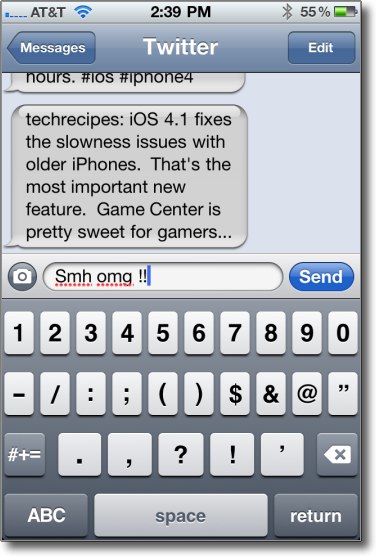
Some of our apple contacts have said that several people have contacted them on how to turn off the red squiggles under misspelled words. As awful as my spelling is, I could not do without this feature; however, if you want to turn off the spelling checks, this tutorial is for you.

Some of our oldest requests were asking how to disable the red squiggle spell checking underlines in Word. I am always surprised how much it bothers some people.


showing red misspelling lines

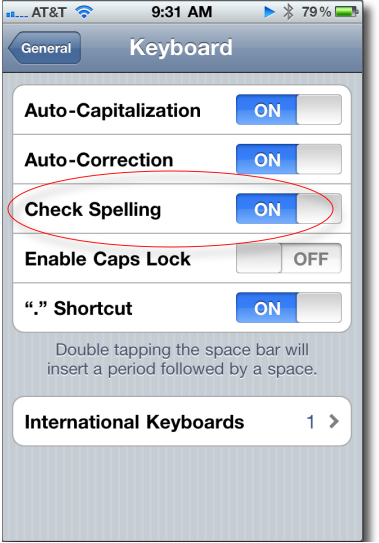
This is how to turn off the spelling checking feature in the iPhone:

1. Click Settings
2. Select General
3. Select Keyboard
4. Slide Check Spelling to OFF

disable spelling checking on iPhone

Read Full Entry

Thursday, September 9, 2010

iPhone iOS 4.1: See Numeric Signal Strength and How to Keep Field Mode Enabled


With the iOS 4.1 Apple has re-enabled field test mode. This allows the user to see the exact cellular signal stretch instead of bars. This tutorial also shows how to trick the iPhone into staying in this mode.

No shocker here. Apple has once again enabled the ability to see the numeric strength of your cellular signal. This is Apple’s way of showing that the majority of call issues are really AT&T’s poor network.

Forget the bar showing signal strength. Now you can actually compare numbers. To enable, dial the following code:


*3001#12345#*

how to enable field test mode

Double tap the signal strength to change from numbers to the graph. Press the home key to exit.

The scale is based on a logarithmic scale so don’t let the negative numbers fool you. Any greater than -100dBm is adequate while -50dBm, for example, is practically perfect coverage. More negative than -110dBm you have a high risk of call failure.

If you want to keep this mode active, you can do the following trick:

1. Dial the code above
2. When the phone enters test mode, hold the OFF button until the screen says Slide to Power Off. Let go of the off button.
3. Hold down the HOME key and keeping holding it while you press cancel. Continue to hold the HOME key until you return to your regular screen.
4. You should be able to use your phone normally while keeping Test Mode enabled.
5. If you want to turn it off, just re input the code and then press the HOME key to disable.

Read Full Entry

iPhone iOS 4.1: Enable HDR Feature in Photos


Many people are excited about the HDR (high dynamic range) feature in the new version of iPhone iOS 4.1. This tech-recipe will show how to turn on and use the HDR setting.

High dynamic range (HDR) photography tries to overcome the exposure limitations of traditional photography. In a scene with bright lights and dark areas, traditional photography cannot simultaneously capture both of these areas correctly. Our eyes may seen the scene well, but the camera cannot capture it.


HDR tries of overcome this limitation but taking shots of different exposures and blending them through software. This software is included in the new iPhone iOS 4.1 software.

To enable HDR mode:

1. Open the Camera app
2. Click the HDR toggle at the top of the screen

toggle hdr on

When HDR is toggled, the phone will actually save two pictures to your device–the HDR photo and a traditional photo. You can tell which is which by the HDR label on the photo.

label showing hdr is enabled

Here is a comparison of the standard and HDR versions:

animation of standard and HDR photos

Read Full Entry

iPhone iOS 4.1: Disable Typing Auto-Correction


You try to text “going to be late, smh” and hit Send. Unfortunately for your relationship, the iPhone corrects “smh” to “Amy.” Oh, boy. When texting, using the iPhone can be annoying as it tries to guess what is being typed. The corrections slow me down more than they help. If you find yourself in this situation, turn off the auto-correction feature. Here is how to do it:


I use a lot of names and abbreviations that the iPhone converts to words that make no sense. With heavy use of texting, I notice this a ton. Turning off the auto-correction can make your life easier.

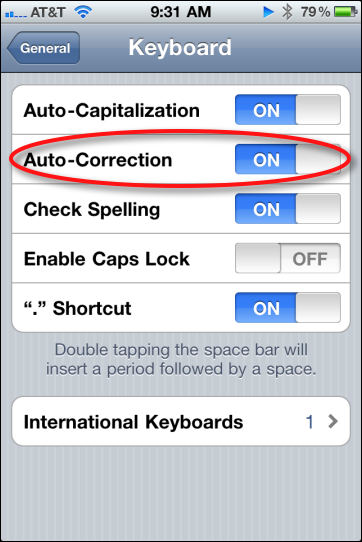
1. Click Settings
2. Click General
3. Select Keyboard
4. Slide Auto-Correction to OFF

slide auto-correction to OFF

Read Full Entry

Wednesday, August 25, 2010

iPad – How to enable accessibility / zoom options in iOS


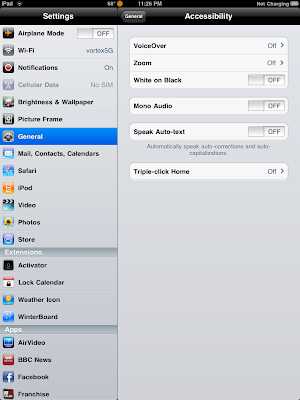
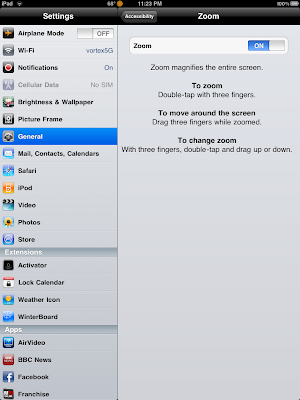
This recipe explains how to enable accessibility options on the Apple iPad that can assist those with vision impairments or bad vision. The iPad’s OS (iOS) has accessibility options that we can enable to make reading and navigating much easier by zooming the screen in and in turn enlarging the view. Navigation and zooming is done via three finger gestures.


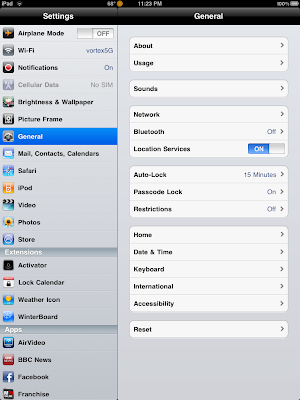
1. On your iPad go to Settings > General


2. Touch on Accessibility. In here, we will want to go into Zoom


4. Turn on Zoom.


Now once you exit you will notice that your screen will be zoomed in on the upper left area of the screen. You can zoom out, navigate zoom with three finger gestures.

Enable / Disable ZoomDouble Tap with three fingers

Move/Navigate while zoomed inDrag with three fingers in direction to move

Change Zoom levelTap twice with three fingers, then hold and move up or down to zoom in or out.

Read Full Entry

Sunday, August 8, 2010

How to Reverse the Jailbreak of Your iPhone, iPod Touch, or iPad (Unjailbreak)


If you’ve modified your iPhone, iPod Touch, or iPad and are now second guessing your decision to jailbreak your device, you can undo the modification and run your device normally. This can be quite useful if your device has been experiencing performance issues since applying the jailbreak.

1. Connect your iPhone, iPod Touch, or iPad to your computer and open iTunes.


2. Select your device from the left column.


3. Go to the Summary tab.

4. In the Version section, click the Restore button.


5. You will be asked if you want to back up the settings for your device before restoring, click the Back Up button.


Your settings will then be backed up and the Restore function will start.

Once the Restore function has completed, your device will be in a “nonjailbroken” state.

Read Full Entry

iPad / iPhone : Setup Gmail as an Exchange Account / Full Calendar, Email, Contact Syncing and Push Support


This recipe will explain how to setup your iPad or iPhone to use Gmail as an Exchange Account and in turn allow you to sync your Google Calendar, Gmail Email and Contacts to Google over Exchange (Push email). Google has been gracious enough to allow full Exchange and Push support for the iPad and iPhone.

Setting up your Gmail / Google Exchange account.


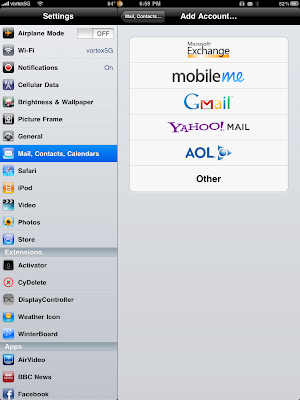
1. Go to Settings > Mail, Contacts Calendars > Add Account

2. Choose Microsoft Exchange


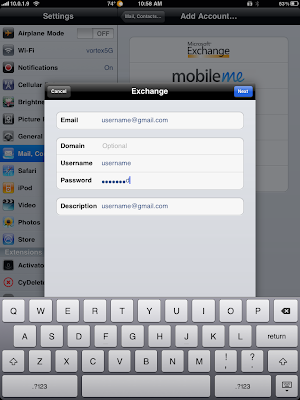
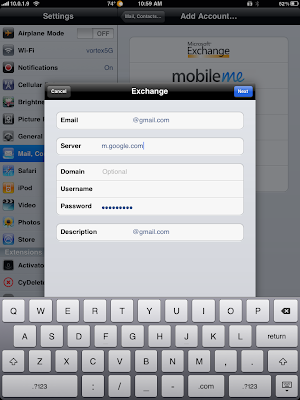
Fill in the form as such.
  • Email: your gmail address
  • Username: gmail user name
  • Password: gmail password
  • Description: anything you like (by default does your username)


Tap Next

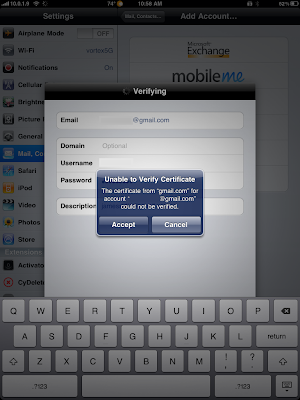
3. It will prompt to accept a Certificate, tap on Accept.


4. Next, it will then ask you for the Server address.

We will enter: m.google.com

Tap Next once we have this filled in.


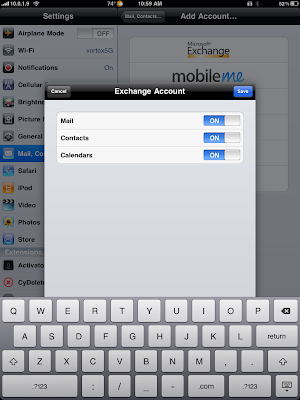
5. Lastly we will be asked for what items we want to sync. By default Calendar, Contacts, and Email should be ON. Tap Save when your done. The account should now be all setup.


To configure your Sync options, once your done; go back to Settings > Mail, Contacts, Calendars and then Tap on the Account we just made to change the Days to Sync options, etc.

However, if your like me and have multiple calendars; only your main default one will show. We can allow syncing of multiple calendars via a Google Sync page.

6. On your iPad / iPhone, open Safari and go to m.google.com/sync

7. Click on your Device and then choose the Calendars you want to sync. Click on Save and your other Calendars will start syncing.

NOTES:

  • -To get a grip on your Contacts in Gmail, go to your Gmail account and click on Contacts. I would recommend using Groups and then adding common Contacts to the appropriate Group. By default, Gmail will not add any of your contacts to this Contacts list; but will keep them in the Global Address List (GAL) so you can still search ALL of your Gmail Contacts
  • -Gmail by default will add anyone you send an email to to the “Other Contacts” list. Again, you have to move contacts to your “My Contacts” list to get them to show in the Address Book.

Read Full Entry

Tuesday, July 27, 2010

iPhone 4 Trick: Invert Colors for White Text on Black Background


iPhones and similar digital devices are frequently difficult to see in certain situations. The 4th generation of the iPhone now comes with a shortcut to quickly inverse the colors to improve visibility. Here is how to enable “white text on black background” inverse colors mode on the iPhone.

When reading a long time or in certain lighting situations, I love this shortcut to be able to quick inverse my colors. Just getting white-text on a black background is a nice change of pace.


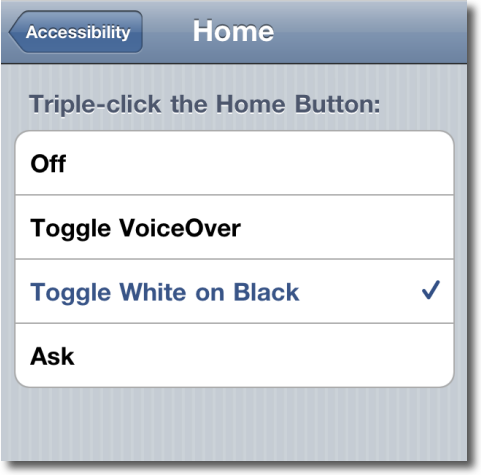
The secret is the use the iPhone’s accessibility’s settings to assign the inverse color mode to the triple-tap of the Home button.

1. Click General icon
2. Select Accessibility
3. Select Triple-click Home
4. Select Toggle White on Black

how to setup invert colors on iPhone

Then to inverse (or to return to normal again) just triple click your home button.

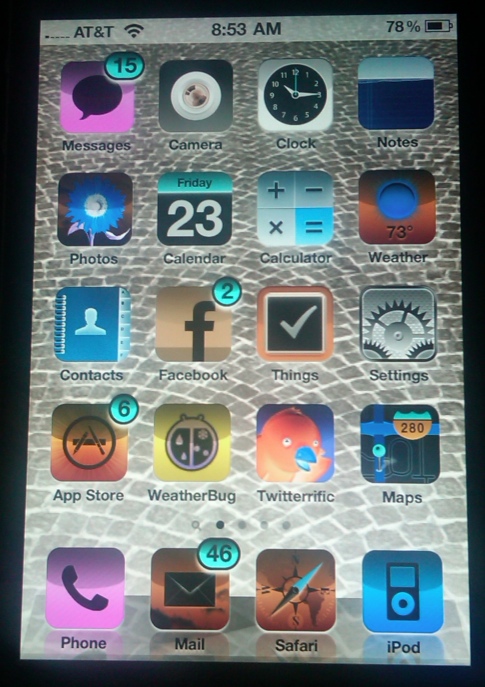
The iPhone will not take a screenshot showing this mode so here’s an external picture showing the invert mode.

example of inverted iPhone

Read Full Entry

Wednesday, July 21, 2010

Post Pictures to Twitter with iPhone


There are several ways to post pictures to Twitter with iPhone

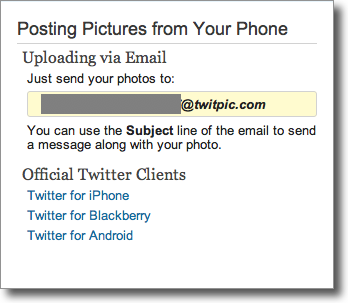
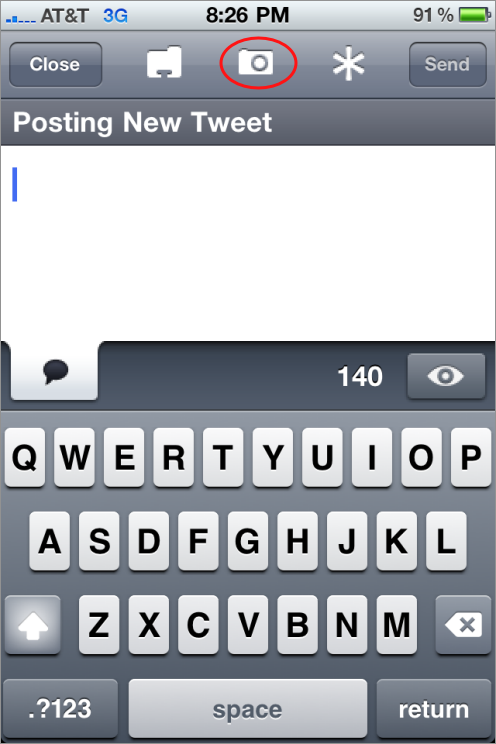
Many people with iPhones want to know how to post pictures to twitter. The majority of pictures on twitter go through the twitpic service. Log in to the site with your twitter credentials, and you will be assigned a twitpic email address. Create an iPhone contact with this email address and when ever you want to tweet a picture just email the picture to your twitpic email address. Whatever text you include in the subject line of the email will be included as text in your picture tweet.


using twitpic to post images to twitter

Alternatively, the majority of the twitter clients also support the twitpic service.

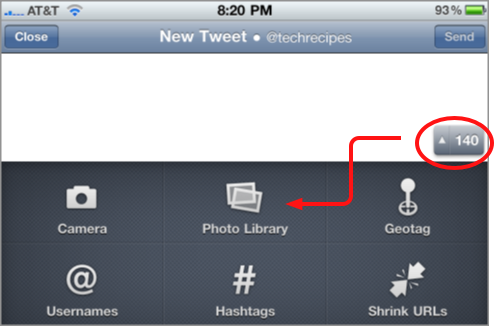
For example, here is how to do it with the official twitter client.

uploading pics through twitter client

Here is also how to do it with twitterrific:

uploading images through twitterrific


Read Full Entry

iPhone: Transfer Voice Memos from iPhone to Computer


The ability to quickly record voice memos on the iPhone is a frequently overlooked feature. Furthermore, figuring out how to import these files from your iPhone to your computer can be tricky. Here are a couple of ways of getting your voice memos off your phone and onto your computer.

The voice memo feature is very interesting. I’ve seen it used from everything to sweet messages to one’s spouse to quick voice recorder for lectures or interviews.


One you have a voice memo recorded, there a two main ways of transferring the voice memo to your computer.

via iTunes

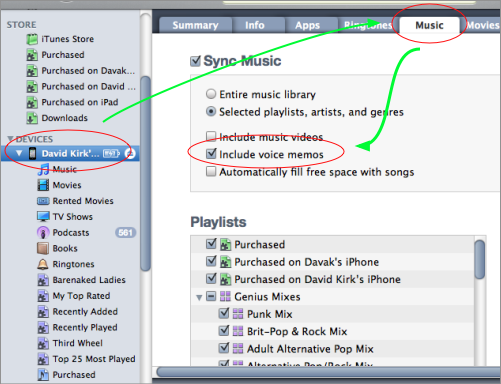
iTunes will transfer voice memos once you enable that setting.

1. Dock your iPhone via USB
2. Click the name of your iPhone under Devices in the left column
3. Click the Music tab
4. Click the checkbox for Include voice memos

how to transfer voice memos using itunes

5. Sync your device
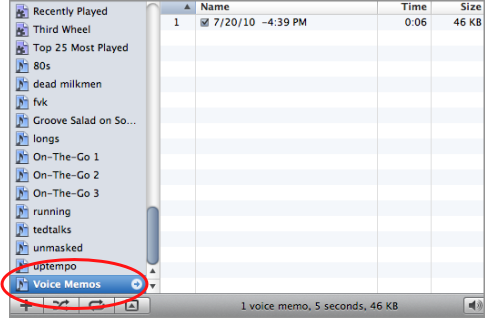
6. Your files will appear under a new Voice Memos playlist

the voice memo playlist in iTunes

7. You can right-click on a memo to perform advanced tasks or gain access to the actual audio file.

Direct Share from Phone

You can also email or MMS the voice memo directly from your phone. If you only have a few files, emailing them may be a good option.

1. From the voice memo screen click the silver button in the lower right corner. This will take you to a list of your voice memos.

2. Select the voice memo you want to share and press the large blue share button at the bottom right of the screen.

3. Select Email or MMS

Read Full Entry

Friday, July 16, 2010

How to Make Incompatible Extensions Work with FireFox 4 (beta)


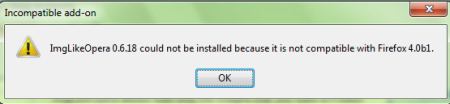
Every time a new version of Firefox comes out, I hate seeing this error when installing extensions: “…could not be installed because it is not compatible with with Firefox.” With the newest releases of firefox and firefox betas, your favorite extensions may not work. This tutorial will show you how to force them to work.


1. Launch Firefox 4 beta
2. In the address bar enter the following: about:config
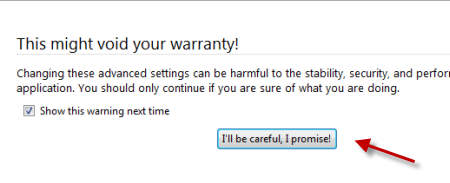
3. Click on “I’ll be careful, I promise” when the message appears.


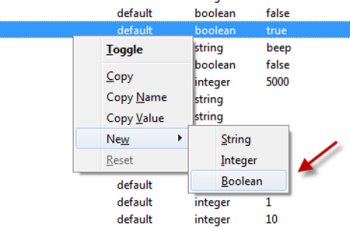
4. Right click and choose New->Boolean


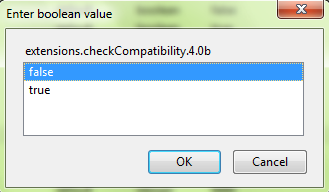
5. A new window will pop up,type in:
extensions.checkCompatibility.4.0b (with FireFox 4 beta)
extensions.checkCompatibility.4.0 (with FireFox 4)
and then click OK.

(Or change to whatever version that you are currently using…)


6. Set value to False and click OK to close that window.


7. Restart Firefox

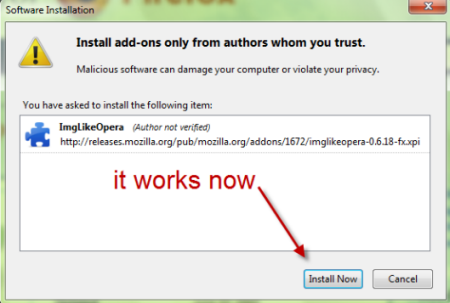
Now, you can use your incompatible add-ons easily.


Read Full Entry